





Update 2012-07-25: These instructions have been (mostly) superseded by a new version of this guide. Follow that document instead.
I recently acquired a TEMPer USB thermometer. It’s a cheap, convenient way to measure temperature in your server closet or machine room. My home “server closet” consists of the living room entertainment center, which is an enclosed wooden structure. It gets pretty hot, so I decided to track the ambient temperature with Cacti.
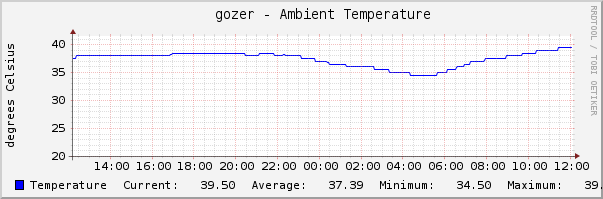
I assume you’ve already set up Cacti on Ubuntu 10.04 LTS, but any recent Debian-based system will work. This guide will help you install the necessary Perl modules to work with the TEMPer, and configure the data source and graph in Cacti. In the end, you will have pretty graphs like so:
Overview:
- Install prerequisite perl modules
- Install temper-mon
- Create udev rule for TEMPer device
- Create Cacti templates
- Create Cacti graph
1. Install prerequisite perl modules
The script that communicates with the TEMPer requires the Perl module Device::USB. For that, you need to first install some packages from the repository, then use cpan to install the rest:
apt-get install libusb-dev libinline-perl libdevice-usb-pcsensor-hidtemper-perl
Or use CPAN:
cpan -fi Device::USB

cpan -fi Device::USB::PCSensor::HidTEMPer
If you haven’t used cpan in the past, first configure it by running cpan, and answering “yes” to the question “Would you like me to configure as much as possible automatically?” Once that’s complete you’ll be able to run the lines above. Configuring cpan is an entire problem on its own, but the automated setup should work.
2. Install temper-mon
temper-mon is my own perl code for working with the TEMPer. It is based on various sources I’ve found online, and has inline documentation for those that wish to modify it. It assumes you have only one TEMPer device connected to a USB port, and prints the temperature reading to standard out. If you have multiple devices you can edit the source to support that, but that also requires changes to the Cacti script setup later on.
Download temper-mon and install it in /usr/local/bin (or somewhere the web server can execute).
cd /usr/local/bin

sudo wget http://www.tolaris.com/blog/wp-content/uploads/2011/05/temper-mon.gz

sudo gzip -d temper-mon.gz

sudo chmod 755 temper-mon
At this point you can run temper-mon as root. But let’s make it work for the webserver user first.
3. Create udev rule for TEMPer device
Now we must create a udev rule for the TEMPer. This will tell udev to make the device world-writable, which means any user on the system can send data to the device. This is necessary because the device doesn’t return a temperature reading without first sending it some data. This isn’t a security hole unless you don’t want attackers knowing the temperature of your closet.
Using your favourite editor, create the file /etc/udev/rules.d/99-temperusb.rules, containing:
SUBSYSTEMS=="usb", ACTION=="add", ATTRS{idVendor}=="1130", ATTRS{idProduct}=="660c", MODE="666"
Or do it directly with:
echo 'SUBSYSTEMS=="usb", ACTION=="add", ATTRS{idVendor}=="1130", ATTRS{idProduct}=="660c", MODE="666"' | sudo tee /etc/udev/rules.d/99-temperusb.rules
Now disconnect and reconnect the TEMPer. You should now have a USB device with “rw-rw-rw-” permissions. Its exact location in the USB tree may vary. Mine is:
# ls -la /dev/bus/usb/002/002
crw-rw-rw- 1 root root 189, 129 2011-04-19 19:59 /dev/bus/usb/002/002
You can verify you have the correct device with lsusb:
# lsusb
Bus 003 Device 002: ID 1130:660c Tenx Technology, Inc.
Make sure your device has ID 1130:660c, or temper-mon won’t work for you. However, you can use these instructions with any other command-line agent which prints data to standard out with the Cacti instructions later on.
Now we test temper-mon. Make sure it works as the webserver user, www-data:
$ sudo su - www-data
$ /usr/local/bin/temper-mon
35
If you get a reading, you’re ready to move on to the next step.
4. Create Cacti templates
It is possible to skip this step and just create graphs without templates. However, I prefer to maintain proper templates for all data sources and graphs. This scales better. I plan to add more sensors later so I can measure ambient room temperature, and outdoor temperature.
You may want to see this how-to for graphing data from a script in Cacti.
The steps in Cacti follow. In all causes where I have not specified a value, use the default.
- Create the Data Input Method
- “Collection Methods” -> “Data Input Methods” -> “Add”
- Name: TEMPer USB deg C
- Input Type: Script/Command
- Input String: /usr/local/bin/temper-mon
- Press “Create”
- “Output Fields” -> “Add”
- Field [Output]: temp_celsius
- Friendly Name: Temperature in degrees Celsius
- Create the Data Template
- “Templates” -> “Data Templates” -> “Add”
- Data Template Name: Local Temperature
- Date Source / Name: |host_description| – Temperature
- Data Source / Data Input Method: TEMPer USB deg C
- Data Source Item / Internal Data Source Name: temp_c
- Press “Create”
- “Output Field” will now say “temp_celsius – Temperature in degrees Celsius”. Press “Save”.
- Create the Graph Template
- “Templates” -> “Graph Templates” -> “Add”
- Template Name: Local Temperature
- Title: |host_description| – Temperature
- Lower Limit: 20 (optional, I find this gives useful graph heights)
- Unit Exponent Value: 0
- Vertical Label: degrees Celsius
- Press “Create”
- Now create the line on the graph.
- “Graph Template Items” -> “Add”
- Data Source: Local Temperature – (temp_c)
- Color: 0000FF
- Graph Item Type: LINE1
- GPRINT Type: Exact Numbers (you may prefer Load Average, if available)
- Text Format: Temperature
- Press “Create”
- Finally, create the four items in the graph legend.
- “Graph Template Items” -> “Add”
- Data Source: Local Temperature – (temp_c)
- Graph Item Type: GPRINT
- Consolidation Function: LAST
- GPRINT Type: Exact Numbers
- Text Format: “Current:”
- Press “Create”
- Repeat this last step 3 more times, replacing the Consolidation Function and Text Format with AVERAGE, MIN, and MAX. On the last item, check Insert a Hard Return
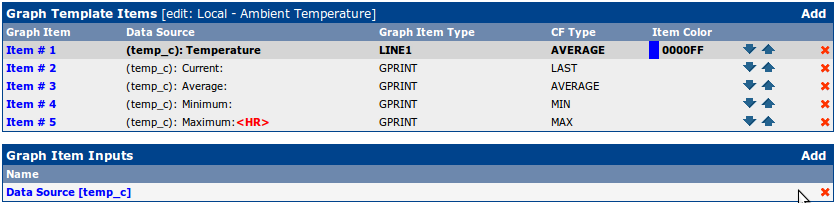
- Your Graph Template should now look like:
- Press “Save”
5. Create a Cacti graph
We are finally ready to create a graph.
- “Management” -> “Devices” -> Select your Cacti server
- Click “Create Graphs for this Host”
- “Graph Templates” -> “Create:” -> select “Local Temperature” from pull-down
- Press “Create”
That’s it! You now have a temperature graph. I recommend using the threshold plugin to issue a warning alert if your server area gets too hot.
The Cacti script/command method has one limitation: the TEMPer must be connected to your Cacti server. But what if you want to connect it to another server, or perhaps use multiple devices around your machine room to gather data? The solution is to create an SNMP agent for the TEMPer. I’ll revisit that in a later post.
-
Hi there,
Using a clean 10.10 server install do you need to modify any of the available repositories?.
doing apt-get install libdevice-usb-perl it says it cant be found. I can manually find the .deb packages and install but then this causes problems with installing cacti.
Manually installing the deb I can get a reading though from the USB thermometer which is good.
Many Thanks
-
Hi Gavin,
My instructions were wrong, and have been updated. You don’t need to install libdevice-usb-perl; just install libusb-dev, then use cpan. I’ve used this setup on both Ubuntu 10.04 LTS and 10.10. I’d appreciate feedback on any errors I’ve made.
I don’t install Cacti from standard repos. It won’t include the plugin architecture, and will be out of date. I recommend you install from source into /var/www/cacti, then apply the plugin architecture as a patch. You may want to link log to /var/log/cacti and rra to /var/lib/cacti/rra (creating those directories), just to be consistent with the Ubuntu filesystem layout.
-
Hi Tyler,
Thanks for the update. I found on a clean install of 10.10 server I had to do a cpan -i Inline and a cpan -i Inline::C before I could do cpan -fi Device::USB. Just a heads up for other users that use these instructions.
Thanks again.
Gavin
-
You’re quite right, and according to my bash history so did I. But I used the package manager:
apt-get install libinline-perl
I’ll update the post. Thanks.
-
Just got some my Temper, but lsusb shows:
Bus 003 Device 008: ID 0c45:7401 Microdia
Looks like they changed the ID. have anyone experienced this?
-
No, I haven’t see that device. The code doesn’t check the USB ID, so it may work. Does it?
-
The code of HidTEMPer certainly checks the USB ID. I’ve been in contact with the module author trying to get my Microdia TEMPer to work with the code, but having no luck yet.
-
The question is: is this a totally difference device, or the same device with a new USB ID? If the former, you may be out of luck. If the latter, just edit the code and change the ID, then test. The relevant file (on my install) is /usr/local/share/perl/5.10.1/Device/USB/PCSensor/HidTEMPer.pm.
-
I tried to change the code in HidTEMPer.pm ( PRODUCT_ID and VENDOR_ID ), but that did not give me any temperature.
The script fails when trying to execute this line:
my $parameters = (SUPPORTED_DEVICES)[0]{$prototype->identifier()}; -
I have this exact same device and so far i’ve had no luck getting any of the linux drivers to work with it. Got it from dealextreme, the included driver cd is unreadable too! I have three of them, if anyone’s experienced with USB sniffing I’d ship one to you for free to try reverse engineering the protocol…
According to the product page it’s supposed to react to holding capslock or numlock down for a couple seconds, then it enters the measured temperature as keypresses, since it pretends to be a input device.
-
My device (ID 1130:660c) definitely does not respond to holding Caps Lock or Num Lock under Ubuntu 10.10. I wouldn’t expect it to, as it’s a different (PS2, in my case) input device doing that. Perhaps that’s a Windows driver thing.
On what OS are you testing? What is your device’s USB ID?
-
Tyler, thank you for this great post. Have you tried to connect several identical Temper devices to one server? Could you please show how to temper-mon can distinguish between devices?
I see you commented out your multi-device code:
## multiple device method
#my @devices = $pcsensor->list_devices();
#
#foreach my $device ( @devices )
# {
# say $device->internal()->celsius();
# }can’t find the method “list_devices()” over there, looks like it wasn’t implemented:
http://search.cpan.org/dist/Device-USB-PCSensor-HidTEMPer/lib/Device/USB/PCSensor/HidTEMPer/Device.pm#METHODS-
The core code (about 10 lines of it in the main function) come from various places online. I didn’t credit them, which usually means I didn’t think I had borrowed enough to give credit.
That includes the seven lines of multi-device code. I never tested this, and I’m not surprised it doesn’t work. I left it in there in case I ever want to support multiple devices. If you can implement something like list_devices(), the code could be written. If you, I’d be happy to update this code with attribution.
-
Thank you very much for the howto!
Just a comment:
I had problems installing Device::USB using cpan, so I used the package manager:apt-get install libdevice-usb-pcsensor-hidtemper-perl
and everything worked flawlessy!
Marcello
-
Thanks, Marcello. The Debian package was added in natty:
When I wrote this, I was running maverick. So it wasn’t an option at the time. Thanks for the update!
-
Has anyone gotten this to work with the following device?
Bus 004 Device 003: ID 0c45:7401 Microdia
Thank you so very much!
Charles-
You can get results for the 0c45:7401 Microdia device by using http://www.isp-sl.com/pcsensor-0.0.1.tgz.
-
Thank you very much!
-
thanks! finally got some data from it
-
(This comment has been imported from email – please ask questions as comments so others can benefit. -Tyler)
Hi there,
after install I have a problem:
wolf@wolf-desktop:/usr/local/bin$ sudo temper-mon
Can’t call method “internal” on an undefined value at /usr/local/bin/temper-mon line 37, line 1.what is the mistake?
The next – I need the temperature in “Celsius” –
what must I do?Many Thanks from germany
-
Hi Wolfgang,
temper-mon lines 32-37 are:
my $pcsensor  = Device::USB::PCSensor::HidTEMPer->new();

# single device method
my $device = $pcsensor->device();

if ( ! defined $device->internal() ) {
If you are getting the error you state, that means that the call to create a new sensor failed. Probably because you don’t have the correct device or it was not plugged in.
-
Just got mine in the mail today. Running lubuntu 12.04. Having a few problems though. I think the system sees it as
Bus 005 Device 003: ID 0c45:7401 Microdia
Errors when running temper-mon though
temper-mon
Can’t locate Device/USB.pm in @INC (@INC contains: /root/perl5/lib/perl5/i686-linux-gnu-thread-multi-64int /root/perl5/lib/perl5/i686-linux-gnu-thread-multi-64int /root/perl5/lib/perl5 /etc/perl /usr/local/lib/perl/5.14.2 /usr/local/share/perl/5.14.2 /usr/lib/perl5 /usr/share/perl5 /usr/lib/perl/5.14 /usr/share/perl/5.14 /usr/local/lib/site_perl .) at /usr/local/share/perl/5.14.2/Device/USB/PCSensor/HidTEMPer.pm line 6.
BEGIN failed–compilation aborted at /usr/local/share/perl/5.14.2/Device/USB/PCSensor/HidTEMPer.pm line 6.
Compilation failed in require at /usr/local/bin/temper-mon line 12.
BEGIN failed–compilation aborted at /usr/local/bin/temper-mon line 12.Any help is appreciated. Is it maybe in the wrong usb port for it to work?
Julez
-
You are missing some libraries. Start at step 1.
As for the Microdia device, see comments above for software that may help.
-
Hi Julez,
See Russ Hill’s comment below for making your Microdia device function.
-
Working well with xubuntu 12.04 with the following model:
Bus 002 Device 003: ID 1130:660c Tenx Technology, Inc. Foot Pedal/Thermometer
$ temper-mon
27.5Lovely.
Thank you for documenting your efforts.-
For my 2nd TEMPer device: Bus 005 Device 002: ID 0c45:7401 Microdia
I had success using the following effort:
http://relavak.wordpress.com/2009/10/17/temper-temperature-sensor-linux-driver/Thanks again to the creator.
-
on redhat 5.8
wget http://www.isp-sl.com/pcsensor-0.0.1.tgz
tar xvfz pcsensor-0.0.1.tgz
cd pcsensor-0.0.1
cp 99-tempsensor.rules /etc/udev/rules.d/
make clean
make
cp pcsensor /usr/local/bin//usr/local/bin/pcsensor
This worked-
How to track the ambient temperature for TEMPer device: Bus 005 Device 002: ID 0c45:7401 Microdia with Cacti?
Any help is appreciated.
-
After messing with several to be compiled utilities found this one:
Running Ubuntu 12.04.1 LTS (GNU/Linux 3.2.0-32-generic x86_64):
lsusb | grep 1130
Bus 004 Device 007: ID 1130:660c Tenx Technology, Inc. Foot Pedal/Thermometer./temper-mon
28.5Super!
Thumbs up for documenting your efforts.
-
-
-
-
-
-
-
-
-
-
-
-
-
-
-


31 comments
Comments feed for this article
Trackback link: https://www.tolaris.com/2011/05/12/graphing-data-from-a-temper-usb-probe-in-cacti/trackback/