





Update 2012-05-16: These instructions have been superseded by a new version of this guide. Follow that document instead.
Update 2010-08-18: These instructions are still valid as of VirtualBox 3.2.8 and Ubuntu 10.04 “Lucid Lynx”. VirtualBox now creates a “vboxnet0” interface by default, but this is not a bridge.
I use VirtualBox every day. The satellite world is infested with bad Windows-based management tools that fail to run in Wine. So I often run those apps in a Windows virtual machine, safely sandboxed the way Windows belongs.
Note to hardware developers: if your network-based device does not have a standards-compliant HTTP interface, you lose. If it has a Windows-based management tool instead, you lose twice. I will buy your product only if I have no other choice.
I imagine running Windows apps is what 90% of VirtualBox users use it for, but it can do so much more than that. I also run several Linux-based VMs, and use them to test server configs, or even whole networks before rolling out the real thing. If you do this, you probably want to use more than the basic NAT networking that VirtualBox uses by default. For instance, wouldn’t it be nice to install an SSH server in the VM, minimise the VirtualBox GUI, and SSH in from a terminal just like you would a real server?
I assume you are using VirtualBox 2.1.4 from a Linux host running Ubuntu 8.04 “Hardy Heron”. Similar commands can be used on any recent Debian or Ubuntu release. You’ll have to adapt some things to use it on RPM- or source-based Linux distributions. Assume all commands are run as root (directly or with sudo).
Step 1: Create a bridge interface
First, we have to create a bridge interface for the VMs. Install the bridge utilities:
apt-get install bridge-utils
Now make the bridge start on boot. Add the following to /etc/network/interfaces:
# VirtualBox NAT bridge
auto vnet0
iface vnet0 inet static
        address 172.16.0.1
        netmask 255.255.255.0
        bridge_ports none
        bridge_maxwait 0
        bridge_fd 1
        up iptables -t nat -I POSTROUTING -s 172.16.0.0/24 -j MASQUERADE
        down iptables -t nat -D POSTROUTING -s 172.16.0.0/24 -j MASQUERADE
Either reboot or start it manually:
ifup vnet0
We now have a bridge interface to which VirtualBox can attach virtual machines. That traffic will be NATed to your host’s IP address when the guest OS accesses the Internet. However, the traffic won’t yet route.
Note: if you are already using a firewall such as iptables, shorewall, or ufw, you should remove the two iptables lines above and add equivalent commands to your firewall configuration. Otherwise NAT will probably not function.
Step 2: Enable IP forwarding
Now you must tell the kernel to route traffic. Find the ‘net.ipv4.ip_forward’ line in /etc/sysctl.conf, and uncomment it:
# Uncomment the next line to enable packet forwarding for IPv4
net.ipv4.ip_forward=1
And load it:
sysctl -p
Step 3: Setup DHCP and DNS for clients
OK, now you can forward and NAT traffic from client VMs. But you still have to configure static IPs in each guest’s OS. Here is where DNSMasq shines. It provides an all-in-one DHCP/DNS server in a small footprint. Install it:
apt-get install dnsmasq
And edit /etc/dnsmasq.conf to include:
interface=vnet0
dhcp-range=172.16.0.2,172.16.0.254,1h
That’s all you really need, but you may want to explicitly define DNS servers and domains for the guests, or static assignments. Add:
dhcp-option=option:dns-server,172.16.0.1,208.67.222.222,208.67.220.220
dhcp-option=option:domain-name,example.com
dhcp-host=08:00:27:00:00:02,vmxp,172.16.0.2       # Windows XP
dhcp-host=08:00:27:00:00:03,vmubuntu,172.16.0.3   # Ubuntu
This defines the host OS and the OpenDNS servers as the DNS servers (instead of passing on whatever your host OS uses), tells all guests they are part of the domain example.com, and defines two static assignments by MAC address.
Step 4: Set up the virtual machine
- Start the VirtualBox interface, and edit your virtual machine’s settings.
- Choose “Network”.
- Enable a network adaptor.
- Under “Attached to:”, select “Host Interface”.
- If you assigned a static DHCP assignment above, be sure to set the same MAC address.
- Under “Host Interfaces”, select the bridge you created in step 1, vnet0.
Example:
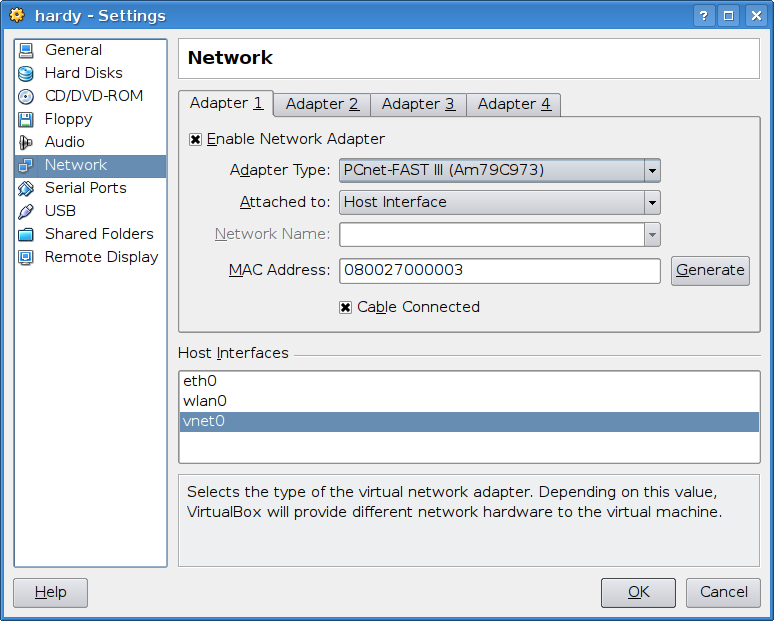
Your virtual machines will now automatically receive an IP address in the 172.16.0.0/24 network, will resolve DNS, will NAT to your host’s external IP address, and can directly address each other.
Tags: networking, virtualbox
-
Hi,
Congratulations, very nice and useful documentation :-)
Zsolt
-
I’m using Gufw for my firewall. How do I add add equivalent commands to my firewall configuration? Thanks in advance for any tips.
-
You cannot do this with Gufw, Alex. Gufw is only intended for basic firewall features (blocking and allowing traffic by specific port numbers), and what we’re doing here (routing and NAT masquerade) is pretty advanced.
However, ufw (the underlying tool that Gufw manages) starts at boot time. So you can put these modifications there. Look in /etc/ufw/. You’ll need to set net/ipv4/ip_forward=1 in /etc/ufw/sysctl.conf, and you’ll need to add something like this to the bottom of after.rules or before.rules:
*nat
-A POSTROUTING -s 172.16.0.0/24 -j MASQUERADE
COMMIT
Note that you can have only one “nat” section, and it must end with COMMIT, so if you already have one just add this line to it. You cannot add this line to the normal “filter” rules.
-
I’ll give it a shot. By the way, your instructions worked perfectly when I disabled Gufw :)
-
I ahve a question, how would this setup work with two or more virtual machines on the same physical interface ?
-
Leonardo, this setup puts the VMs on a virtual bridge, and then instructs your host machine to forward the traffic out whichever interface it is currently using, while NATting the addresses. You can have multiple VMs on the bridge in this method.
If you want to have the VMs instead bridge directly to a real physical interface, you won’t do this. Instead you’ll add the physical interface to the bridge with something like “bridge_ports eth0” in the bridge setup, and skip setting up IP forwarding and dnsmasq. Now your VMs will request an IP from the DHCP server on your LAN and directly access the network. The advantage is avoiding a NAT layer. The disadvantage, especially for Windows VMs, is avoiding a NAT layer, since that exposes them to the usual array of exploits and viruses.
-
Thank you for this. Worked perfectly in Jaunty as well with a Win 2003 server guest. Cheers.
-
Thank’s for this tutorial
-
Crafty (ab)use of bridge-utils. I haven’t played with it since bridging DWL-900APs back in 2002.
The networking options GUI is different in VBox 3.0, which was just released yesterday. I was quite surprised to go to the manuals download to find 2.2.4 documentation wasn’t available and shiny new 3.0 had replaced it. Time to upgrade again!
-
thanks very much, worked first time of course!
-
Does anyone know how to do Step 1 using Fedora 11?
-
Justin, here are some tips on that:
http://my.opera.com/irootx/blog/show.dml/1760271
http://www.samlesher.com/fedora/bridge-network-interface-on-virtualbox-in-fedoraNeither is exactly what I do here, and you’ll still have to do the firewall stuff in /etc/sysconfig/iptables, but this is the right track.
-
Hi
I am beginner and need some help in making inter networking between host and virtual machine.On my machine these software are installed
1. ubuntu 9.04 (Host)
2. virtual Box 3.0.8
3. ubuntu 9.04 (virtual machine)
i have assigned the IP to host eth0 using file /etc/networking/interfaces. while on virtual machine eth0 ip assigned by VirtualBox. i am replacing this IP with same class which assigned host.
The problem is that, when i was send a ping command from host to virtual machine or virtual machine to host , then response is unreached host.any tutorial or web link that helpful for me.thanks for advanced.
-
Hi Dani,
You say that the VM is getting an IP from VirtualBox, which means you are using NAT networking on the VM. VirtualBox -> Settings for your VM -> Network -> “Attached to: NAT”. But you are trying to put the VM on the same subnet as your host’s eth0. That won’t work.
It sounds like what you want to do is bridge the VM to the host’s eth0. Once you do that, Virtualbox will no longer give the VM an IP, so you’ll have to configure it in /etc/network/interfaces or get it via DHCP from the same source as your host does. To set this, change the VM’s network settings in VirtualBox to “Attached to: Bridged” and “Name: eth0”.
-
Hi,
Thanks for this tutorial.
Can you explain us how to put “vnet0” in “Adapter1″->”Host Interfaces”?
I am not sure, but do we need to do, something like this?
http://spinczyk.net/blog/2008/03/05/setting-up-a-bridged-network-for-virtualbox-on-ubuntu-linux/
-
Tiago,
You cannot put vnet0, the bridge you created, in “Host-only networking”. That’s for the virtual bridges that Virtualbox creates, only. You can only have it in “Bridged networking” mode.
-
SO, just to be clear:
With Virtualbox 4.0.2 should I use Adapter1->Bridged Adapter->vnet0?
Will be the result the same as in your tutorial?
Am I misunderstanding something??
-
Yes, that’s correct. This tutorial is still valid up to Virtualbox 4.0.6, although the GUI has changed a little since it was written.
-
Is it possible with this method to essentially replace the host with the guest (as far as the outside world is concerned)?
In essence, I want to forward ALL traffic coming from my VM to the Internet like normal NAT but also all traffic coming from the Internet to my host, to the VM – minus port 22 so I can still ssh into the host.
-
Hi Georgios,
What you want is a “DMZ Host” setup, like some home routers offer. You want to run something like this:
iptables -A PREROUTING -i eth0 -p tcp -m multiport –dports 22 -j ACCEPT
iptables -A PREROUTING -i eth0 -m state –state NEW -j DNAT –to-destination 172.16.0.2
iptables -A POSTROUTING -o eth0 -j MASQUERADE -
Thanks tyler – that is going to be very helpful once I resolve my major problem.
Don’t ask me why but following this configuration, once I boot up the VM and it accesses the network interface, my server becomes unreachable (this is a remote server I’m working with). Perhaps it’s because this setup was developed with Virtualbox 2.x, I’m using Virtualbox 3.0.8.
Have you figured out how to make this work using the Host-Only selection from VBox? It’s supposed to work out of the box but it doesn’t for me – the DHCP server never gives my guest an IP and even if I statically assign one, I can’t ping back and forth.
-
Hi Georgios,
As long as your VMs and VirtualBox config files have migrated to the latest xml format (read the XML files to see what I mean), you should be fine. Half of my VMs have been migrated from VirtualBox 1.6.2.
I have had no trouble with Host-Only, but I didn’t try using DHCP, only static assignments. Not sure if DHCP is offered in that mode, as Host-only mode is useful for simulating networks between VMs. For instance, I test router setups that way, and I wouldn’t want a DHCP server on such a network.
-
Hi again,
I really have no idea what the problem was with my setup – a clean install of everything made it work out of the box.
FYI – Host-only does offer the VirtualBox DHCP as an option. I’ve chosen to disable it because I only run one VM and I want to guarantee a static IP either way.Thanks for your help above – I’m about to try making the VM work as a DMZ Host like you said.
-
Wow, this is neat – with your help and a little Googling, I’ve made this work. Here’s the iptables script for whoever wants it.
This will work with the default VBox config – the host-only networking is on 192.168.56.x.
I’ve allowed ssh (22), VNC (5901) and VRDP (3000 – my setting) to go directly to the host. Adjust accordingly.#!/bin/bash
HOST_IFACE=eth0
GUEST_IP=192.168.56.200
GUEST_IFACE=vboxnet0# clear all tables
iptables -P INPUT ACCEPT
iptables -F INPUT
iptables -P OUTPUT ACCEPT
iptables -F OUTPUT
iptables -P FORWARD DROP
iptables -F FORWARD
iptables -t nat -F# Keep following ports to host
iptables -t nat -A PREROUTING -i $HOST_IFACE -p tcp -m multiport –dports 22,5901,3000 -j ACCEPT# The rest, route to the guest
iptables -t nat -A PREROUTING -i $HOST_IFACE -j DNAT –to-destination $GUEST_IP# Forward all packets from already established connections
iptables -A FORWARD -m state –state ESTABLISHED,RELATED -j ACCEPT# Allow forwarding new connections from host to guest
iptables -A FORWARD -i $HOST_IFACE -o $GUEST_IFACE -d $GUEST_IP -m state –state NEW -j ACCEPT
# Allow forwarding new connections from guest to host
iptables -A FORWARD -i $GUEST_IFACE -o $HOST_IFACE -s $GUEST_IP -m state –state NEW -j ACCEPT# setup masquerading
iptables -t nat -A POSTROUTING -o $HOST_IFACE -j MASQUERADE-
Does this really work for the Host-only adapter of vbox 3(.0.8)?
-
Yep. This setup makes the VM act as the “DMZ host”, a feature usually found on NAT routers.
-
THANK YOU!
This is exactly the piece of documentation I needed.
Works like a charm! -
Hi,
I’m trying to use a part of your guide and combine it with my solution – wanting to point my guest hosts directly to my ISPs DNS (while keeping the default gateway on my guests the suggested 172.68.0.1). So I make the masquerading rule in iptables, set my virtual guest to go to 172.0.0.1 as gateway and set DNS address to the real DNS-address from my ISP, assuming that my physical host will routing the traffic. It seems to be working as long as I have all on my host IP-tables set to ACCEPT and clean, except for the -t nat masquerading rule that you have added. As soon as I apply my ordinary rules on IP-tables the traffic stops. I use rather simple rules – here’s the listing.Chain INPUT (policy DROP)
target prot opt source destination
ACCEPT all — 0.0.0.0/0 0.0.0.0/0 state RELATED,ESTABLISHED
ACCEPT all — 127.0.0.1 0.0.0.0/0
ACCEPT tcp — 0.0.0.0/0 0.0.0.0/0 tcp dpt:22 state NEWChain FORWARD (policy DROP)
target prot opt source destination
ACCEPT all — 0.0.0.0/0 0.0.0.0/0 state RELATED,ESTABLISHEDChain OUTPUT (policy ACCEPT)
target prot opt source destinationand of course the NAT-rule
Chain PREROUTING (policy ACCEPT)
target prot opt source destinationChain POSTROUTING (policy ACCEPT)
target prot opt source destination
MASQUERADE all — 172.16.0.0/24 0.0.0.0/0Chain OUTPUT (policy ACCEPT)
target prot opt source destinationWhat am I missing, I was hoping that stateful rules in IPTABLES would make the incoming traffic work properly, but apparently not?
Thanks in advance!
-
Sorry for the typos oabove. All the places where I’ve written 172.68.0.1 and 172.0.0.1, was of course reffering to 172.16.0.1, the ipaddress of the vnet0 interface.
-
Hi MheAd,
I could probably help you a little better if you posted the output of “iptables-save”. It’s more readable, at least to me.
The first question I would ask is: Why use a firewall on FORWARD, if you are doing NAT? NAT acts as a perfectly effective firewall anyway.
Here is what I use for my default FORWARD rules on any router:
:FORWARD DROP [0:0]
-A FORWARD -i vnet0 -j ACCEPT
-A FORWARD -p tcp ! –syn -m state –state NEW -j DROP
-A FORWARD -m state –state ESTABLISHED,RELATED -j ACCEPT
-A FORWARD -p icmp -m icmp –icmp-type 0 -j ACCEPT
-A FORWARD -p icmp -m icmp –icmp-type 3 -j ACCEPT
-A FORWARD -p icmp -m icmp –icmp-type 4 -j ACCEPT
-A FORWARD -p icmp -m icmp –icmp-type 8 -j ACCEPT
-A FORWARD -p icmp -m icmp –icmp-type 11 -j ACCEPT
-A FORWARD -p icmp -m icmp –icmp-type 12 -j ACCEPTDefault is drop. The first rule allows all outgoing traffic (incoming from vnet0, and out via any interface). The next drops incoming bad TCP traffic (IE, those claiming bad TCP flags like ACK when there is no record of a SYN). The next allows established and related, as you are doing. The remainder allow the 6 ICMP types you probably want to allow.
These rules have always worked for me.
-
I’m trying to redirect ports using DNAT ie 81 to port 80. The incoming packet is rewritten and sent to the right place, it seems the output packet is not getting rewritten properly ?
I have the following
iptables -t nat -A PREROUTING -i eth0 -p tcp -m tcp –dport 10022 -j DNAT –to-destination 172.16.0.113:22
iptables -A FORWARD -m state –state ESTABLISHED,RELATED -j ACCEPT
iptables -A FORWARD -i eth0 -o vnet0 -m state –state NEW -j ACCEPT
iptables -A FORWARD -o eth0 -i vnet0 -m state –state NEW -j ACCEPT
iptables -t nat -A POSTROUTING -o eth0 -j MASQUERADEhelp anyone ?
Dave
-
Dave,
Your first rule will NAT incoming connections, and it will NAT the related return traffic. If it is not, there is something else wrong. Make sure “nf_conntrack” module is loading, which will track connections like that.
If you want to NAT new outgoing connections from port 22, that alone won’t do it. You’ll also need:
iptables -t nat -A POSTROUTING -o eth0 -p tcp -m tcp --sport 22 -j SNAT --to-source 10.0.0.1:10022Where 10.0.0.1 is your IP on eth0. But this is an unusual case.
-
Pingback from Portables Netzwerk auf dem Notebook « Bit 65 on 2010-02-01 at 22:57 +00:00
-
Hello, does anyone how to know to do Step 1 on Mac OS X?
Thanks in advance!
-
Well, I answered my own question. Using VirtuaBox 3.14, it’s a simply a matter of choosing a Bridged Adapter from the Settings/Network/Adapter dialog.
I found this helpful reading: http://www.virtualbox.org/manual/ch06.html#network_bridged
Thanks,
Archer-
This is not what tyler is documenting. Sure you can access the internet this way.
-
Hi everybody, thank you for this How-to.
Sorry for my English.
My problem is as follows:
I’m on Ubuntu 9.10 with VirtualBox 3.1.4, trying to get a virtualized Windows XP visible from the rest of my network.
I followed your guide step-by-step. The only difference is I selected “bridged” instead of “host-only”. Is this correct? (my VM interface is bridged to “vnet0”)
However, the only thing I obtain is XP being able to reach the network, not vice versa.
I obtain the exact same result if I select “bridged connection” and I link it to my “eth1” wireless interface.
Guest ping host, host can’t ping guest.
What I’m missing? Is there something in Ubuntu 9.10 that block traffic somewhere?
Thank you very much in advance! -
Hi Abe,
If you want your XP guest to be visible from the rest of your network, you don’t want to do what I’m suggesting. My design intentionally leaves the guest behind a NAT layer, where my host can access it but nothing else.
From your results (“I obtain the exact same result if I select ‘bridged connection’ and I link it to my ‘eth1’ wireless interface.Guest ping host, host can’t ping guest.”), I think the problem is more likely the Windows firewall in the guest.
-
Hi Tyler, thank you for your reply.
I checked the firewall on the guest system: the service is not even installed.
What should I do now? =) Thank you for your patience. -
Hi Abe,
I don’t understand what you want to do. Do you want your VMs to be directly accessible to the rest of your LAN, with an IP from the same subnet as your host OS? If so, what you want to do is set your guest networking to “bridged” and select eth1. However, this usually only works on wired interfaces, as wireless doesn’t usually respond well to being told to transmit two different MAC addresses. It depends on the wireless hardware you are using.
If you do try to do that, don’t do anything that I recommend in this post – just make it a bridged interface on eth1. If it doesn’t work, it probably won’t. See the VirtualBox documentation.
-
Fantastic. Worked straight off, with VBox 3.1 on Ubuntu 10.04 64bit.
Exactly what i wanted to do, I just didn’t know how!
Really great work!
-
Hello Tyler
Firstly, I want to thank you for this wonderful tutorial. I have moved to Ubuntu back in 2009 but normally I need to do a bunch of things with windows. I have an XP Guest for Gotomeeting and now I had too install a MS SQL Server and point a Java VM Application server to an SQL Db running into this XP Guest. Yesterday I had important help from an IT colleague (I am actually a business user, no IT background) and we managed to connect making a bridge to the wifi modem. No I fulfilled the job using your tutorial.
The only thing I cannot do is navigate the Internet from this XP guest. However I can successfully ping between host and guest and as I mentioned I can successfully connect the MS SQL database running into the guest VM. But I will keep trying.
Once again, thank you.
-
Hi Guillermo,
From your description, the NAT setup isn’t working. You should have a bridge between host and guest (not to the wifi interface), and then route and NAT from the host. If you do have that, and still cannot browse, verify that your iptables commands are creating the NAT rule and that no other firewall software is getting in the way.
-
Finally! My migration from VMware to Virtualbox is complete. This was the only thing lacking in VB that VMware could do with it’s NAT’d interface (provide internal communications along with internet connectivity). Great article…thanks!
-
Hi geniuses (I don’t get a clue),
Might be this question was asked before, or might be differently. But what i want to do is relatively (me – you) simple. Work with my host as a jboss server and vbox’ as clients. I did the config above, and it work’s fine for the Internet connection and file sharing (smb). The problem rises when I enter (navigator) the url to get a resource on the server (like: 172.16.0.1:8080/app/xxx.html) from a guest box (172.16.0.4).
Is the config above works for this purpose ? if now how could I do that ?
Thanks in advance
-
Hi Elmaho,
You don’t need any of this in order to do simple host/client communication. As long as your host is on 172.16.0.1 and your client is on 172.16.0.4, you should be able to browse each other. Check that you don’t have a firewall enabled on your host:
sudo iptables-save
If you see any line with REJECT or DROP in it, you need to open port 8080/TCP at the host. How to do that depends on your firewall, sorry.
-
Hi Tyler,
Thanks for your reply.
# Generated by iptables-save v1.4.4 on Wed Nov 3 22:25:59 2010
*nat
:PREROUTING ACCEPT [32:3128]
:POSTROUTING ACCEPT [5951:424277]
:OUTPUT ACCEPT [5994:434077]
-A POSTROUTING -s 172.16.0.0/24 -j MASQUERADE
COMMIT
# Completed on Wed Nov 3 22:25:59 2010this is the result of iptables-save command, there’s no REJECT or DROP in it.
I don’t know, but what is the mean of ‘bridge_ports none’ in the bridge config ?
-
Elmaho,
“bridge_ports none” means the bridge has no ports connected to it when you first create it. Virtualbox will inject traffic from the VMs into the bridge.
Other uses for bridges would be to use “bridge_ports eth0”, so you can put your VMs directly on the local Ethernet instead of routed/NATted through your host OS. There are instructions on how to do that online and in the Virtualbox manual.
-
thanks again Tyler,
I didn’t mention all what I need to do, I chose this confg ’cause I want to use one of my vbox’ as a database/web server.
I get a limited knowledge at the networking, the next question will confirm that ;) In advance: excuse me
Is the config above (top) translates packets from 172.16.0.0 to 127.0.0.0 and vis versa ?
i.e: 172.16.0.1:8080 will be 127.0.0.1:8080 ?Am I too far !!
-
Elmaho,
I’m replying to your last question, as the blog only allows a depth of 5 nested comments.
The NAT instructions here only NAT traffic from 172.16.0.0/24 (the virtual machines) to the IP address of your host’s eth0. It will definitely not NAT to the localhost subnet (127.0.0.0/8).
The NAT instructions here are so your VMs can talk to hosts on the Internet. You do not need NAT at all for communicating between host and VM; that is just networking, don’t use the NAT instructions at all. Try setting up just the bridge and make sure you can ping both ways between VM and host. Then try to access your DB/web server on the VM.
-
This is a very good tutorial, I perused it these days. Thank you, tyler.
-
I used this guide to install a bridget network on my laptop (host: ubuntu 10.10, guest: debian squeeze) with VirtualBox 4.0.4.
Worked right away – I just had to restart after defining the masquerading, -
Can you explain me what interfaces bridges the new vnet0 interface?
However, I know what a bridge is, I’m confused :S
-
No physical interfaces are connected to bridge vnet0. That’s the idea. Instead, the VMs are connected to it, and the host OS routes the traffic (via whatever physical interface is in use at the time), while performing NAT.
-
Thank you very much ;-)
-
this solution has been rock solid for a good while. However, after upgrading to Ubuntu 11.10 x64, using the vnet0 bridge adapter will no longer allow my client VMs to see the internet. Anyone else seeing this?
-
Hi dg,
I’m not aware of any issues with 11.10, but I haven’t used it myself. Does brctl show that the bridge exists and works? Can you ping from the host to the VM? Is net.ipv4.ip_forward still set to 1 in /etc/sysctl.conf or in the active kernel?
sysctl -a | grep ip_forward
-
brctl show gives:
bridge name bridge id STP enabled interfaces
vnet0 8000.000000000000 nonet.ipv4.ip_forward = 1 is still set
unable to ping guest from host or host from guest.
-
That all looks normal. brctl shows the bridge exists, but the way that Virtualbox works, it won’t show up as an interface on it.
Perhaps rebuild the vboxnet driver?
/etc/init.d/vboxdrv setup
If you sniff on vnet0 with tshark/tcpdump, do you see any traffic at all? What about while pinging?
-
Internet access in Virtualbox Host-only networking
http://jackal777.wordpress.com/2012/02/13/internet-access-in-virtualbox-host-only-networking/
-
Fantastic! Excellent write up which solved several pains in my……
Thanks!
-
I’m tried the tutorial on Ubuntu Oneiric 11.10 and Virtualbox 4.1 and it did not work for me.
The guest machine does not get an IP address:
Mar 17 12:04:17 wuhan dhclient: DHCPDISCOVER on eth2 to 255.255.255.255 port 67 interval 11
Mar 17 12:04:28 wuhan dhclient: No DHCPOFFERS received.It looks like no traffic is going back to the guest:
Mar 17 12:03:11 wellington dnsmasq-dhcp[1933]: DHCPDISCOVER(vnet0) 08:00:27:c2:98:8b
Mar 17 12:03:11 wellington dnsmasq-dhcp[1933]: DHCPOFFER(vnet0) 172.16.0.241 08:00:27:c2:98:8b
Mar 17 12:03:27 wellington dnsmasq-dhcp[1933]: DHCPDISCOVER(vnet0) 08:00:27:c2:98:8b
Mar 17 12:03:27 wellington dnsmasq-dhcp[1933]: DHCPOFFER(vnet0) 172.16.0.241 08:00:27:c2:98:8bAlso if i assign a static ip, i’m not able to ping from host to the guest.
-
If definitely works on Maverick with Virtualbox 4.1. From what you describe, bridged networking isn’t working on Oneiric. Except that is very unlikely. Nothing has changed in Virtualbox or the kernel that would break that. Possibly you are missing a prerequisite package that is no longer in the default install.
My advice is to double-check that you’ve set up the bridge in Linux and bridged networking in Virtualbox. Also check that you have dkms and bridge-utils installed.
-
I’ve double checked the setup:
virtualbox: Adapter 1: Intel PRO/1000 MT Desktop (Bridged adapter, myvnet0)
host os: brctl show
bridge name bridge id STP enabled interfaces
myvnet0 8000.000000000000 noSo the setup is as you describe in your post.
It seems that the bridge is just not working.
if i type
> ip addr show
i get
6. myvnet0: mtu 1500 qdisc noqueue state DOWN
link/ether 4a:79:1b:c5:83:a4 brd ff:ff:ff:ff:ff:ff
inet 172.16.0.1/24 scope global myvnet0I’m worried about “state DOWN”…
So maybe this setup does not work with the newest bridge-utils?Do you have the same output in your maverick setup for the bridge?
Do you have any idea how to debug the cause of this problem?-
That is odd. On maverick, it shows as “UNKNOWN”:
5: vnet0:
link/ether 7e:fd:52:0e:fd:53 brd ff:ff:ff:ff:ff:ff
inet 172.16.0.1/24 brd 172.16.0.255 scope global vnet0
inet6 fe80::7cfd:52ff:fe0e:fd53/64 scope link
valid_lft forever preferred_lft foreverTry running “ifconfig myvnet0 up”, to force it up and see if it passes traffic.
-
Hi Jeff,
I’ve confirmed that I can still use bridged networking in Ubuntu 12.04 precise, and I’ve even written a new version of this document. I have not seen your problem. Did you find a solution?
-
-
-
-
-
-
-
-
-
-
-
-
-
-
-
-
-
-
-


68 comments
Comments feed for this article
Trackback link: https://www.tolaris.com/2009/03/05/using-host-networking-and-nat-with-virtualbox/trackback/