Update 2018-02-08: This post was written for Cacti 0.8.x. Some details have changed since Cacti 1.0.
You should really, really get your Cacti RRA settings right before you begin using it. Cacti defaults to polling every 5 minutes, but a lot of enterprise users change this to 1 minute in order to provide higher resolution for troubleshooting problems. Unfortunately, there is a lot of incomplete information on how to do this.
The first link is mostly right, but forgets about adjusting RRA steps. Twopacket’s guide is very nearly correct, but warns against changing cron’s poller interval, which is exactly what you should do.
This is another post in my recent series on Cacti. In fact, I’ve written quite a lot about about Cacti.
The Four Changes
There are four things you must do to configure Cacti for 1-minute polling. You should do this before gathering any data.
- Create 1-minute RRA settings.
- Adjust “Step” and “Heartbeat” on all 1-minute Data Source templates.
- Change the poller frequency in cron.
- Change the poller frequency in Cacti settings.
I’m going to focus on the RRA settings first, because this is the one thing you must get right from the start. Once you start collecting data with bad RRA settings, it is extremely difficult to correct it. And by “extremely difficult”, I mean “just throw it away and start over”.
Cacti default 5-minute RRA settings
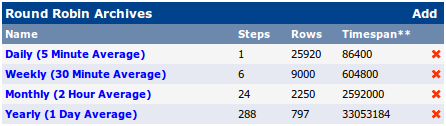
The default Cacti RRAs expect polling every 5 minutes, and use steps of 1, 6, 24, 288. Multiply by 5 minutes, and that gives RRAs with resolution of 5 minutes, 30 minutes, 2 hours, and 1 day. You can see this in Cacti, under “Console” -> “Management” heading -> “Data Sources” -> RRAs.
1-minute Polling: The Wrong Way
It’s common to see 1-minute polling implemented by adding a 1-minute RRA like so:
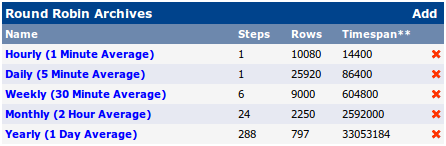
What’s the problem? When combined with a 60-second step size (see below), this defines a 1-minute RRA. But it doesn’t define the 5-minute, 30-minute, 2-hour, or 1-day RRAs. It defines TWO 1-minute RRAs, along with RRAs for 6 minutes, 24 minutes, and 288 minutes (about 4 hours). Remember, these are calculated as “(step size in data source) * (steps in RRA definition)”.
1-minute Polling: The Right Way
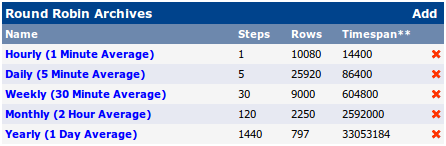
Here’s the correct way. Use step sizes of 1, 5, 30, 120, and 1440.
1 and 5-minute Polling
This will give you correct 1-minute polling data while keeping the consolidated RRAs at the expected frequencies. But what if you want some graphs to keep 1-minute resolution (network statistics, CPU load) and others at 5-minute resolution (filesystem space)? To do that you must define two sets of RRAs. Leave the default RRAs alone or only rename them – their IDs are hard-coded into certain places in Cacti. Create new ones for 1-minute polling like so.
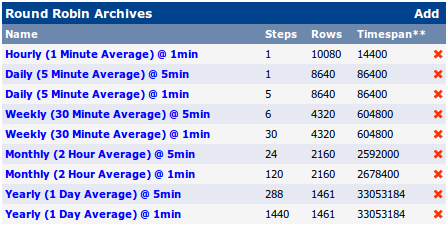
These are intended to be used in groups. Select only the “@ 1min” RRAs for 1-minute data, and only the “@ 5min” RRAs for 5-minute data.
Adjust “Step” and “Heartbeat” on all Data Source templates
In Cacti, navigate to “Console” -> “Templates” heading -> “Data Templates”. Click on a Data Template you wish to use 1-minute polling.
Under “Associated RRAs”, select the new 1-minute RRAs you created. Use the Ctrl key and scroll the tiny selection window to select all “@ 1min” RRAs. Deselect the “@ 5min” RRAs.

Then adjust the Step setting to 60.

And the Heartbeat setting to 120. This must always be twice the Step setting. It would be nice if it were automatically calculated in the next release.

At the bottom of the page, press Save. Repeat the “Heartbeat” step for each Data Source Item tab.
The final settings should like this:
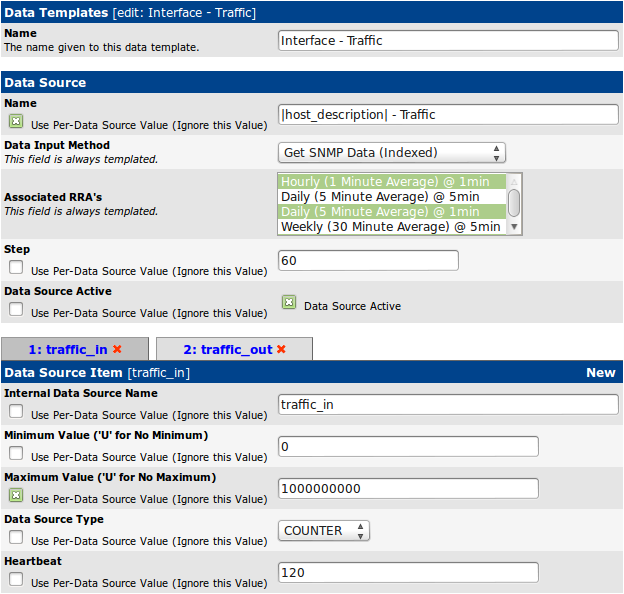
Repeat this step for every Data Template you wish to update. This is a tedious job. If you’re good with MySQL you can change these settings directly in the database, but I don’t recommend it.
Change the poller frequency in cron
Unfortunately it’s possible to configure cron several ways. Under Debian/Ubuntu, cacti installs a configuration file /etc/cron.d/cacti. From a terminal, edit it with:
sudo editor /etc/cron.d/cacti
Source installs recommending editing root’s crontab.
sudo crontab -e -u root
The entry will look something like this:
MAILTO=root
*/5 * * * * www-data php /var/www/cacti/poller.php >/dev/null 2>/var/log/cacti/poller-error.log
Change this to the following, then save and quit.
MAILTO=root
* * * * * www-data php /var/www/cacti/poller.php >/dev/null 2>/var/log/cacti/poller-error.log
Change the poller frequency in Cacti settings
Back in Cacti, navigate to “Console” -> “Configuration” heading -> “Settings”. Then select the “Poller” tab. Change “Poller Interval” and “Cron Interval” to “Every Minute”.
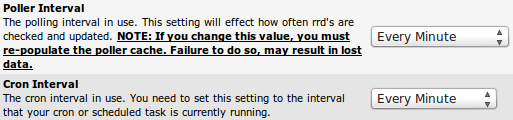
Note: Some people recommend not changing the cron interval. See the first comment below for clarification.
Finally, rebuild the poller cache. Navigate to “Console” -> “Utilities” heading -> “System Utilities”. Then select “Rebuild Poller Cache”. Congratulations! Cacti is now polling every minute with correct RRA settings.


Leave a Reply