Some time ago, I wrote a guide on how to create an online eBook library, accessible from a browser or Android/iPhone device. The benefits are many. You always have access to all your books, anywhere. You can directly share them with your friends. You don’t have to manage local libraries on your devices.
Since I wrote my first post, a number of better tools have come along which make this easier. Here is the new way to do it.
You will need:
- A personal web server capable of running PHP applications. You can use a real server or a virtual machine as long as it has a public IP address you can access. Or you could use your desktop PC, accessible only within your private LAN when you’re at home. Dropbox is no longer an option, as only serves static content (not PHP apps). I use the latest Ubuntu LTS release with Apache and PHP 5.3, on my own server with a public IP address.
- Calibre, to manage your eBook library. Calibre is awesome. It converts between virtually all eBook formats, can strip DRM, and stores and manages your books in a way you can easily access with a file browser.
- ownCloud, to synchronise your Calibre data to your server automatically. Alternatively, you can use any file synchronisation tool.
- COPS, a PHP application which can read Calibre’s metadata and generate OPDS and HTML catalogs. OPDS is an interchangeable format for describing and sharing eBooks – such as in a personal library.
- An eBook reader with OPDS support, such as FBReader or MegaReader.
How to do it:
Install Calibre
Installing Calibre is easy. On Ubuntu, just run:
apt-get install calibre
Run it for the first time, add some eBooks to your library, and close the application. For this example, I assume that you will save your eBooks to ~/Library.
Calibre can also serve its own books directly as an OPDS library. However, Calibre is a GUI application, so I run it only on my desktop.
Install ownCloud on your server
Install ownCloud according to the instructions. For this example, I assume you will configure owncloud at www.example.com/owncloud, and that you will create a user called “tyler”.
Install owncloud-client on your desktop
Like Calibre, you can install the ownCloud desktop client easily:
apt-get install owncloud-client
Start it and add ~/Library as a new share. It will be uploaded to a directory on the server such as:
~/public_html/owncloud/data/tyler/files/ownCloud/Library/
Install COPS
Download and install COPS according to the instructions. For this example, I assume you will install COPS in ~/public_html/cops, and will create a symbolic link to point to your Library folder in ownCloud folder for ease of use. I have configured this as so:
cd ~/public_html/cops
ln -s ../owncloud/data/tyler/files/ownCloud/Library
This symbolic link works around ownCloud’s htaccess restrictions to make the eBook files readable.
Now edit config_local.php with your preferred settings. Be sure to configure $config['calibre_directory'] to point to your Calibre folder:
$config['calibre_directory'] = 'Library/';
COPS’s author, Sébastien, is a nice guy who would appreciate any patches, translations, or beer you have for him.
You should now be able to browse to your library. For example:
http://www.example.com/cops
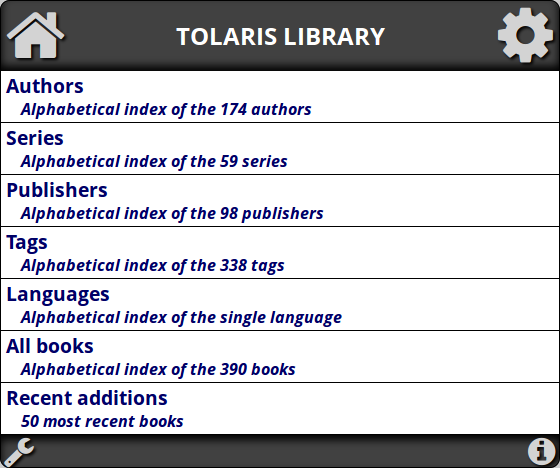
Safety tip: click the “gear” icon for a very useful search dialog.
Install an eBook reader with OPDS support
I prefer to read with FBReader on Android devices. On Apple iOS, consider MegaReader. Kindle users can’t use OPDS, but can download eBooks via the web interface or “side-load” them via USB from a PC. Here are the instructions for FBReader; other software is similar.
- Install FBReader from Google Play and open it.
- Press “Network library” button
- Press “Add catalog”
- Select “Enter URL manually”
- Enter the URL to your library, appended with “/feed.php”. For example, “http://www.example.com/cops/feed.php”.
- Press OK twice. Your catalog will now appear in the list.
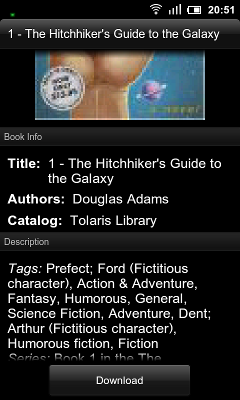
You can now browse your catalog within FBReader, select any book, and download it, and read it without navigating out again.
Updating the library
Once you have all this set up, updating your library is easy. Just add the book in Calibre and quit. ownCloud will synchronise the new files to your server in the background. The new books will be available in COPS as soon as it completes.


Leave a Reply